Unlock Your Amazon Fire Tablet's Full Potential with Fire Toolbox
Amazon's Fire tablets are known for their unbeatable value, often starting at just $100 and frequently dropping even lower during sales. But out of the box, they come with Amazon's Fire OS, which limits access to Google services and offers a different app ecosystem than standard Android. Fortunately, a free tool called Fire Toolbox lets you break free from these restrictions. With it, you can install the Google Play Store, change default apps, and tweak system behavior to make your tablet much more versatile. Below, we answer common questions about using Fire Toolbox to transform your Fire tablet.
What exactly is Fire Toolbox?
Fire Toolbox is a free Windows application created by independent developer Datastream33. It provides a simple graphical interface to modify Amazon Fire tablets beyond their stock settings. The tool works by sending ADB (Android Debug Bridge) commands to your tablet, allowing you to enable or disable system apps, install Google services, change launchers, remove lockscreen ads, and more. It's regularly updated to support the latest Fire models and Fire OS versions. Although it's not an official Amazon tool, it's widely trusted in the Fire tablet community for its safety and reliability when used correctly.
How do I install Google Play on my Fire tablet using Fire Toolbox?
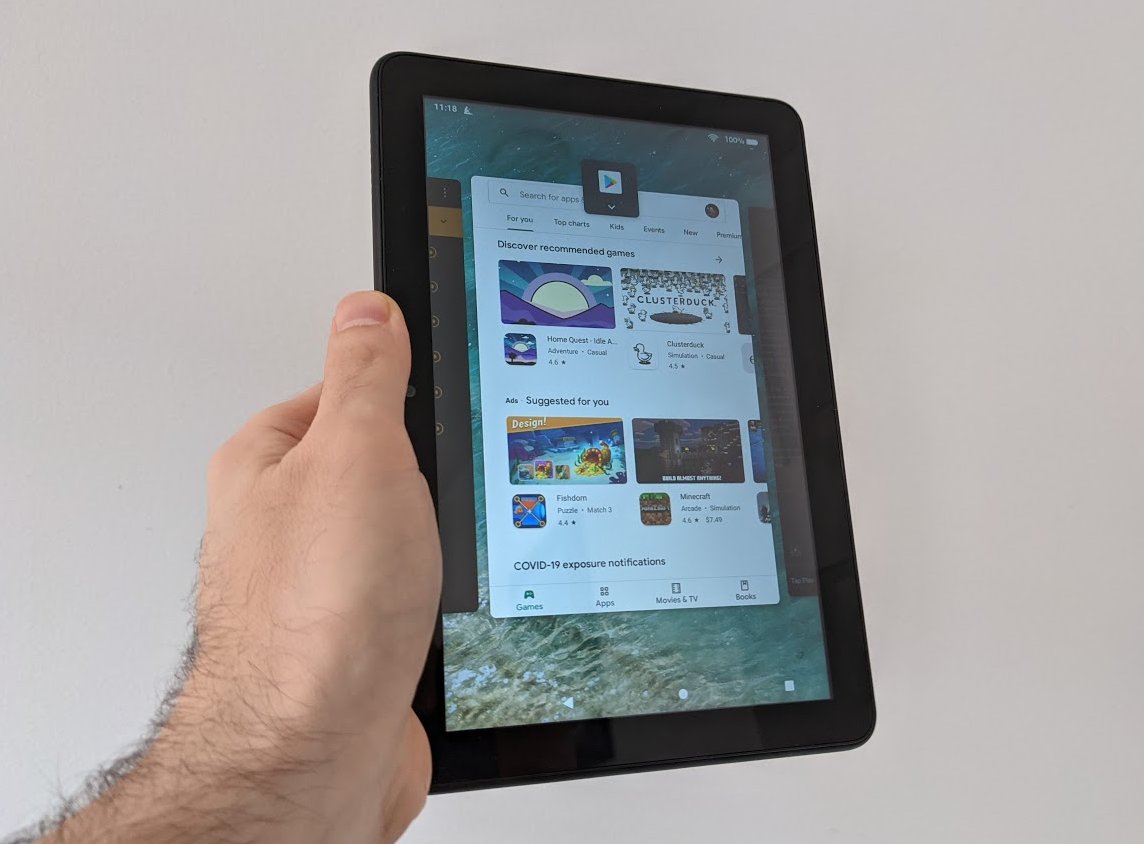
Installing the Google Play Store is one of the most popular uses of Fire Toolbox. First, take your Fire tablet and enable Developer Options by tapping the “Serial Number” in Settings > Device Options seven times. Then turn on USB Debugging under Developer Options. Connect your tablet to a Windows PC via USB. Download and run Fire Toolbox, select your device, and choose the “Google Services” module. Follow the on-screen instructions—the tool will automatically sideload the necessary APKs (Google Play Services, Google Play Store, etc.) and grant required permissions. After a reboot, you'll see the Play Store icon on your home screen. You can then sign in with your Google account and download apps like Gmail, Chrome, and YouTube directly.
Can I change the default launcher and other system behaviors?
Absolutely. Fire Toolbox includes a “Launcher” module that lets you install and set a custom launcher such as Nova Launcher or Microsoft Launcher. This replaces Amazon's Fire Launcher, giving you a more traditional Android home screen with app drawers, custom icons, and widgets. In the same module, you can disable the annoying Special Offers (lockscreen ads) that come with discounted Fire tablets. The tool also offers a “System UI” section where you can hide Amazon's persistent search bar, remove the “For You” tab, or enable a navigation bar (instead of swipe gestures). These tweaks make the tablet feel much closer to a standard Android device.
Is using Fire Toolbox safe? What are the risks?
Fire Toolbox is generally safe when used on a Fire tablet running a supported Fire OS version. It doesn't require rooting the device, so it doesn't void your warranty in the same way rooting would. However, you should be aware of a few risks. First, if you disable critical Amazon system apps, your tablet might become unstable or unable to receive future OTAs (over-the-air updates). Second, installing Google services can cause notification delays or battery drain on some models. Third, using the tool incorrectly (e.g., selecting incompatible options) might cause a boot loop or force you to factory reset. Always follow the on-screen prompts carefully, and consider creating a backup before making changes. Most users experience no issues, but proceed with caution.
What are the main benefits and drawbacks of hacking my Fire tablet?
Benefits include access to the full Google Play ecosystem, the ability to use your preferred launcher, removal of ads, and a cleaner interface. You also gain control over pre-installed bloatware and can potentially improve performance by disabling unused Amazon services. Drawbacks include the risk of occasional bugs or instability after updates, loss of Amazon-specific features like Fire TV remote integration, and a more complex setup process if something goes wrong. Additionally, if you ever need to return the tablet under warranty, you'll need to undo all changes—which Fire Toolbox can help with thanks to its restore function. For most users, the benefits far outweigh the drawbacks, especially if you value a flexible Android experience over Amazon's ecosystem.
Which Fire tablet models and Fire OS versions are compatible?
Fire Toolbox supports nearly every recent Fire tablet model, including the Fire HD 8, Fire HD 10, Fire HD 8 Plus, and even the Fire 7. The developer maintains a compatibility list on the XDA Developers forum. In general, tablets running Fire OS 5 or Fire OS 7 (based on Android 5.1 to Android 9) are supported. Newer models with Fire OS 8 (Android 11) also work in many cases, though some advanced options might be limited until the tool is updated. Always check the official XDA thread for the latest compatibility information before starting. The tool itself will also warn you if your device isn't supported.
Can I reverse the changes I made with Fire Toolbox?
Yes, reversing changes is straightforward with Fire Toolbox. The tool includes a “Restore & Backup” module that can re-enable any Amazon apps you disabled, remove Google services, and restore the original launcher. You can also perform a full factory reset from your tablet's settings to erase all modifications, but that's more drastic. The developer recommends using the Toolbox's restore function because it's targeted and preserves your user data. If you plan to sell or return your tablet, be sure to revert everything first. The process is just a few clicks, and the tool provides clear instructions for each step. This makes Fire Toolbox a low-risk way to experiment with your Fire tablet's capabilities.