Effortless Batch Editing in Affinity via Claude AI: A Step-by-Step Guide
Introduction
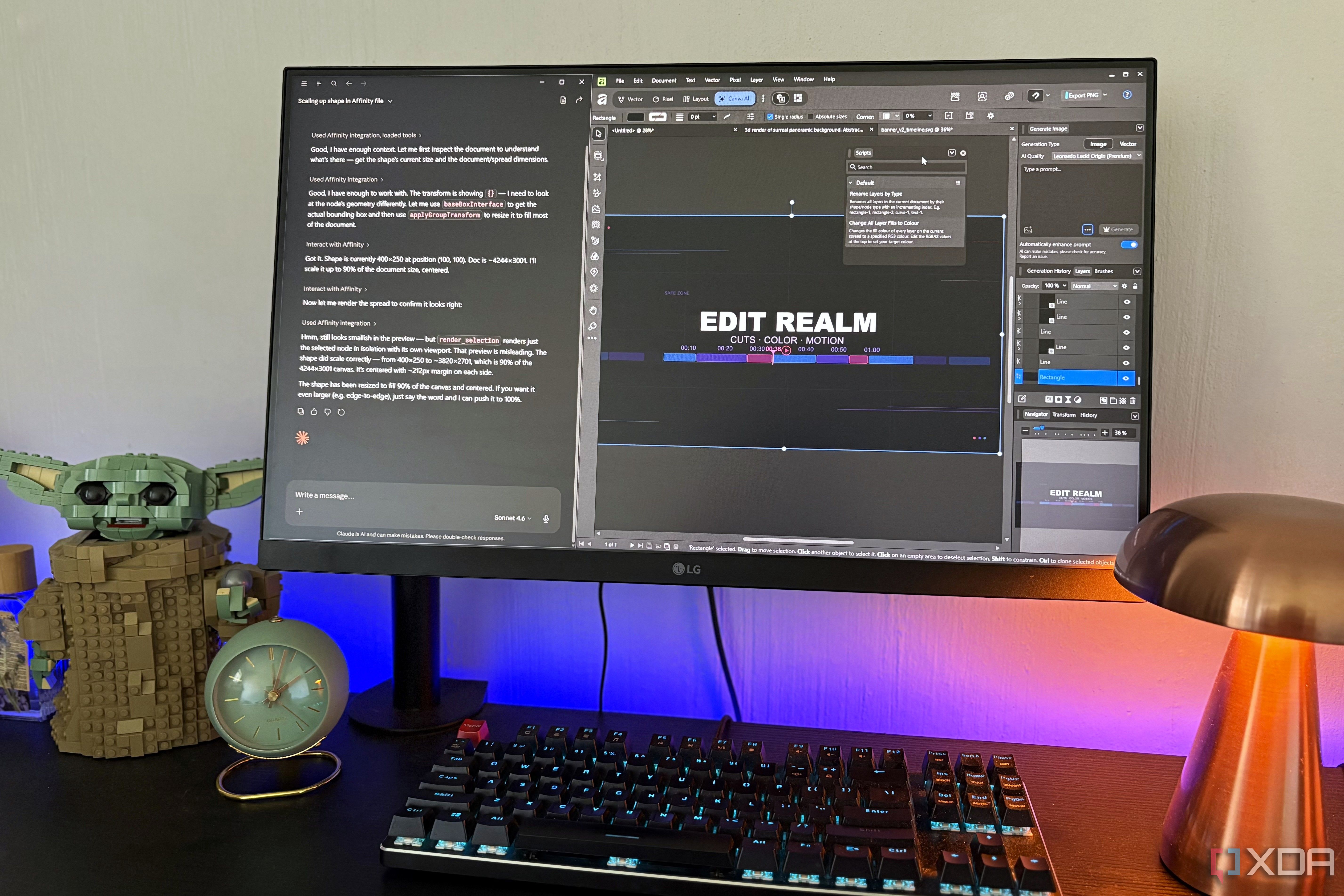
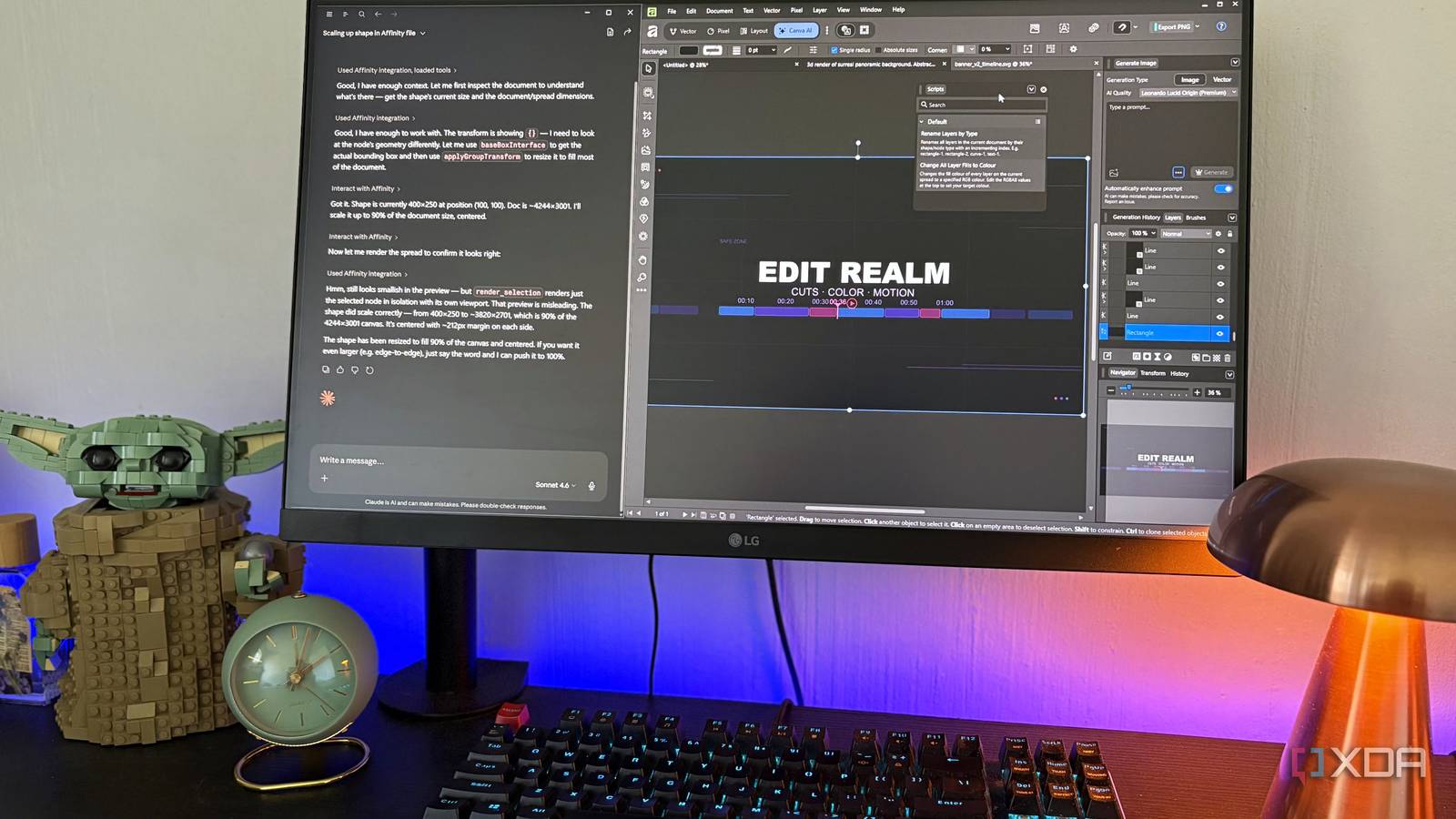
Since Affinity released its unified, nearly free suite, designers have embraced its powerful tools without the Adobe subscription trap. But even the best software can slow you down when you need to apply the same tweaks to dozens of designs. Enter Claude AI: by connecting it to Affinity, you can automate those repetitive edits—no layer manually touched. This guide walks you through setting up a batch-editing pipeline that leverages Claude's language understanding to interpret design commands and adjust your projects programmatically.
What You Need
- Affinity Designer/Photo/Publisher (v2.0 or later; Mac recommended for native AppleScript support)
- Claude API key (available from Anthropic)
- A scripting environment (AppleScript on Mac, or Python with py-applescript on Windows via automation tools)
- Basic scripting knowledge (you'll modify code, not write from scratch)
- Text editor (VS Code, Sublime, or even Notes)
- Internet connection for API calls
Step-by-Step Instructions
Step 1: Enable Affinity’s Scripting Interface
Affinity on macOS supports AppleScript, which lets external programs control the app. Open Affinity, go to Affinity > Preferences > General, and check “Enable AppleScript editor”. On Windows, you may need third-party automation like AutoHotkey or UI.Vision, but the core logic remains the same.
Step 2: Obtain Your Claude API Credentials
Sign up at Anthropic’s console and create an API key. Keep it secret; you’ll embed it in your script. Note: Claude has usage limits and costs—start with a small budget.
Step 3: Write a Script That Connects Claude to Affinity
We’ll use a simple AppleScript that sends a prompt to Claude and applies the returned edit commands. Below is a skeleton script. Save it as batch_edit.scpt.
-- batch_edit.scpt
property apiKey : "sk-ant-..." -- replace with your key
property claudeModel : "claude-3-haiku-20240307"

on batchEdit(designPath, userInstruction)
    -- Step 3a: Prepare the Claude prompt
    set prompt to "Given an Affinity design file, apply the following edit to all layers: " & userInstruction & ". " & ¬
        "Output only the AppleScript commands that Affinity can execute."

    -- Step 3b: Call Claude API (via curl)
    set curlCommand to "curl -X POST https://api.anthropic.com/v1/messages \
        -H 'x-api-key: " & apiKey & "' \
        -H 'anthropic-version: 2023-06-01' \
        -H 'Content-Type: application/json' \
        -d '{\"model\":\"" & claudeModel & "\",\"max_tokens\":1024,\"messages\":[{\"role\":\"user\",\"content\":\"" & prompt & "\"}]}'"

    set response to do shell script curlCommand

    -- Step 3c: Extract the AppleScript commands from Claude's answer
    -- (Assume Claude returns code between ```applescript...``` markers)
    set AppleScript's text item delimiters to "```applescript"
    set tempParts to text items of response
    set AppleScript's text item delimiters to "```"
    set scriptCode to text item 2 of tempParts

    -- Step 3d: Open the design and run the generated commands
    tell application "Affinity Designer 2"
        open file designPath
        -- Execute the commands (use run script in a controlled way)
        set editResult to run script scriptCode
        close document 1 saving yes
    end tell
    return editResult
end batchEdit
Step 4: Run the Script on One File (Test)
Open Script Editor (macOS) or your automation tool. Paste the script above, replace the API key and model if needed. Call the handler:
batchEdit("/Users/you/Documents/design.afdesign", "change all text colors to #FF6600 and apply a 2px drop shadow")
Run it. Watch Affinity open, apply changes, and save. If errors occur, check Console for API response issues or missing AppleScript syntax.
Step 5: Scale to Batch Processing
Now modify the script to iterate over a folder of designs. For example:
on batchProcessFolder(folderPath, userInstruction)
    tell application "Finder"
        set designFiles to every file of folder (folderPath as POSIX file) whose name extension is "afdesign"
        repeat with aFile in designFiles
            batchEdit(POSIX path of aFile, userInstruction)
        end repeat
    end tell
end batchProcessFolder
Call it with a folder path and your edit instruction. Claude will generate appropriate Affinity commands for each file based on the same instruction—but it can adapt to varying layers.
Step 6: Automate with Schedules or Triggers
To run the batch overnight, use macOS’s cron or launchd. Save the script as an application (File > Export > Application) and schedule it via Calendar alarms or a simple shell cron job. On Windows, Task Scheduler can call a Python version of the script.
Tips for Success
- Start small: Test with one layer before tackling entire folders. Claude may misunderstand “all layers” if your prompt is vague.
- Be explicit in instructions: Instead of “make it look modern,” say “increase contrast by 20%, apply a gradient overlay from #000000 to #FFFFFF at 30°.”
- Handle errors gracefully: Wrap the AppleScript
run scriptin a try block; log failures to a file instead of aborting the batch. - Rate-limit API calls: Claude has usage thresholds. Insert a
delay 1between file edits to avoid hitting limits. - Back up originals: Batch editing can mess up a design if the AI-generated commands are off. Work on copies until you trust the pipeline.
- Optimize prompts: If you always need the same edit (e.g., branding colors), create a library of prompt templates in your script.
With this setup, you’ve effectively turned Claude into a tireless design assistant. You describe what you want once, and it applies the changes across all your files—layer by layer, without you ever touching a canvas.