How to Transition Away from Claude Code as a Pro User
Introduction
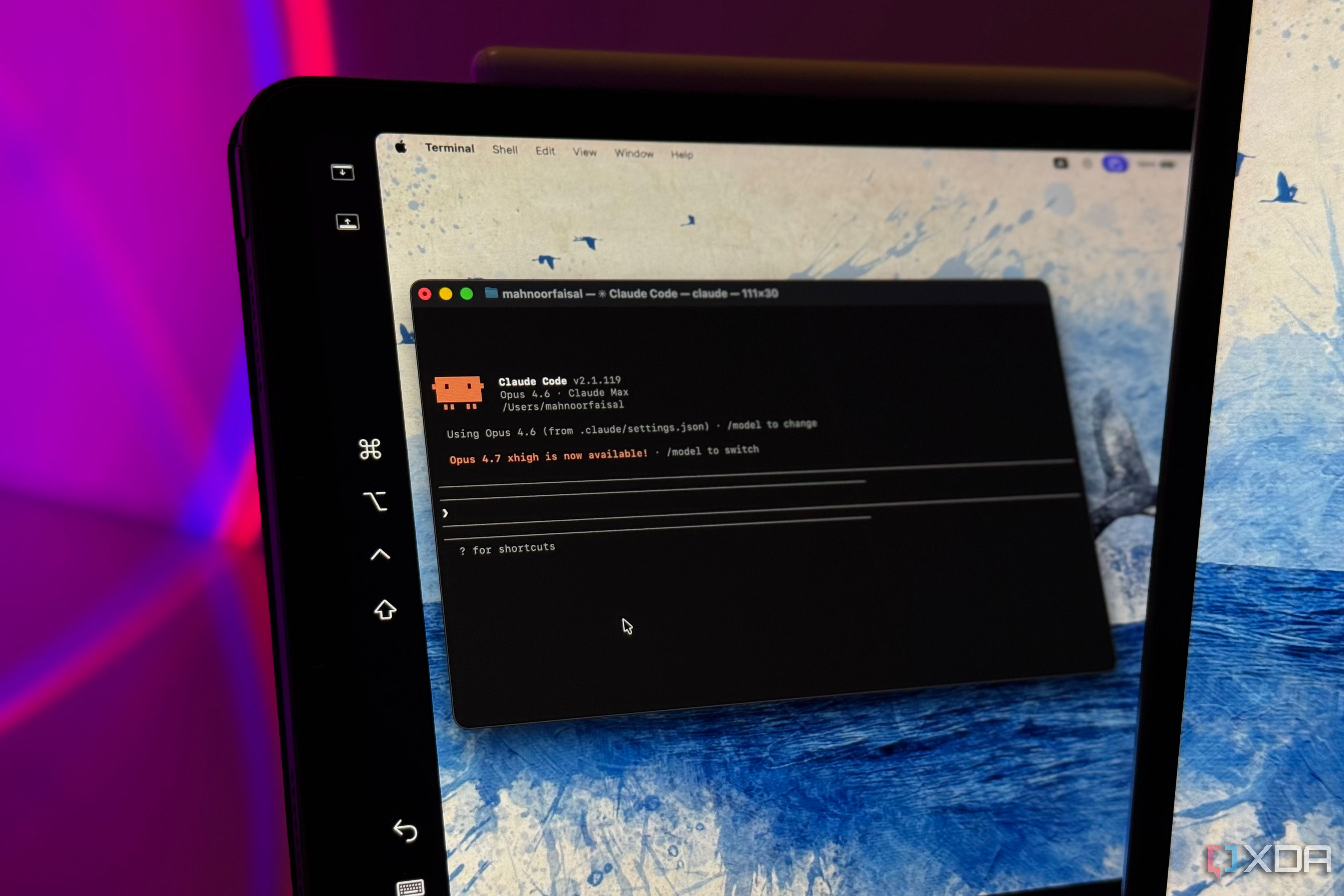
If you’re a Claude Pro user who has been relying on Claude Code, you’ve likely experienced how this terminal-based coding agent opened up programming to a broader audience—much like ChatGPT once demystified AI. However, with Anthropic’s decision to remove Claude Code for Pro users, it’s time to prepare for the change. This guide walks you through the essential steps to transition smoothly, ensuring you don’t lose productivity or momentum.
What You Need
- Access to your Claude Pro account – Ensure you can still log in and export any saved sessions or configurations.
- Basic terminal familiarity – You should be comfortable with command-line operations (navigation, file editing, running scripts).
- List of alternative tools – Consider options like GitHub Copilot, Cursor, or local LLMs (e.g., Ollama). Research which fits your workflow.
- Backup storage – For exporting code snippets, prompts, and custom configurations.
- Time allocation – Set aside a few hours to test and configure your new setup.
Step-by-Step Transition Guide
Step 1: Audit Your Current Claude Code Usage
Before you change anything, take stock of how you use Claude Code. Open your terminal and review recent commands, projects, and frequently used prompts. Note the types of tasks you delegate to Claude Code: code generation, debugging, refactoring, or learning new languages. This awareness prevents you from overlooking key features in the replacement tool.
- List all automated workflows that depend on Claude Code.
- Identify which custom aliases or scripts invoke Claude Code.
- Record any API calls or integrations you’ve built around it.
Step 2: Export Your Data and Configurations
Pro users often accumulate valuable prompt templates and session histories. Manually export these before the service change takes effect.
- Copy your
~/.claudedirectory (or similar) to a backup location. - Save any custom system prompts or environment variables used with Claude Code.
- Take screenshots or text dumps of successful code generation sessions – they can serve as training examples for the next tool.
- If you rely on Claude Code’s context management (e.g., project summaries), export those as plain text files.
Step 3: Evaluate Alternative Coding Agents
Not all alternatives are created equal. Your goal is to find a tool that compensates for Claude Code’s strengths: terminal-based interaction, natural language understanding, and multi-file context.
Consider these popular options:
- GitHub Copilot – Excellent for inline code suggestions, but less conversational and not fully terminal-based.
- Cursor – An IDE with integrated AI coding capabilities; it can handle multi-file edits with natural language.
- Local LLMs (e.g., Ollama + Codestral) – Full control, privacy, and no subscription changes; requires more setup.
- OpenAI Codex (via API) – Still available, but costs can add up.
Test each with a sample task from Step 1. Compare accuracy, speed, and ease of integration with your existing workflow.
Step 4: Set Up Your Replacement Tool
Once you’ve chosen an alternative, install and configure it.

- Follow the official installation guide for the tool (e.g.,
npm install -g @anthropic-ai/claudeis no longer valid; use the new one). - Connect the tool to your code repositories – ensure it can access the same project context as Claude Code did.
- Recreate your essential shortcuts or custom commands. For terminal-based tools, create alias in your shell config (e.g.,
alias ai='cursor …'). - Import any exported configurations from Step 2, adapting prompt formats if needed.
Step 5: Migrate Your Workflows Incrementally
Don’t try to move everything at once. Start with one or two high-frequency tasks.
- Use the new tool alongside Claude Code (while it still works) to verify outputs match your expectations.
- Document the differences—note where the new tool excels or falls short.
- Adjust your prompting style: alternative tools may respond better to differently structured requests.
Step 6: Test, Iterate, and Stabilize
After migrating core tasks, run a full day of normal work using only the new tool. Revisit steps 3-5 if you hit productivity snags.
- Conduct a code review of AI-generated outputs to ensure quality.
- Tweak environment variables and tool configurations to match your optimal settings.
- If you experience feature gaps, explore plugins or custom scripts that fill them.
- Finally, remove Claude Code from your active workflow once you’re confident.
Tips for a Smooth Transition
- Keep a cheat sheet – Write down the most common commands for your new tool to speed up muscle memory.
- Join community forums – Whether it’s the tool’s Discord or Reddit, other users often share migration hacks.
- Explore local models – If subscription changes bother you, a local LLM eliminates future disruptions.
- Don’t wait too long – The removal may happen abruptly; start the transition now.
- Provide feedback to Anthropic – If you feel strongly about the change, let them know through official channels. They sometimes reconsider.
While Claude Code’s departure from the Pro tier is disappointing, this guide helps you channel that frustration into proactive change. With the right alternative and a structured plan, you can maintain—or even improve—your coding productivity.